

Audit overview
3 categories need attention: Security, and 2 others.
Fix Priority Matrix
5 findingsQuick Wins
2High impact, low effort — start here.
Strategic
3High impact, requires investment.
Easy Improvements
0Small gains, minimal effort.
Nothing in this quadrant — good news.
Deprioritize
0Low impact, high effort — do last.
Nothing in this quadrant — good news.
Screenshots
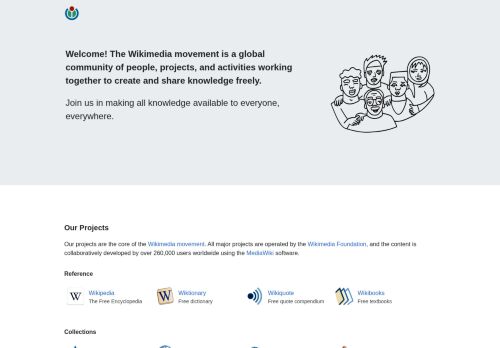
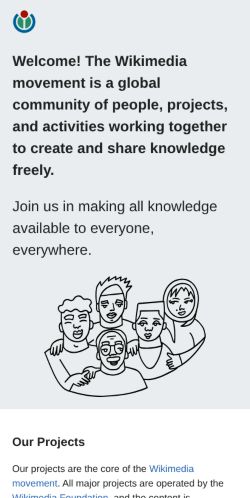
Top Priorities (5)
Content-Security-Policy header is missing
Without a CSP, a single XSS bug can exfiltrate everything your users type — including credentials.
No Content-Security-Policy header found
Without a CSP, a single XSS bug can exfiltrate everything users type — credentials, payment data, session tokens.
1 image(s) missing alt attribute
Each image without alt text is a WCAG 1.1.1 failure — invisible to screen-reader users, lost from Google Image Search.
14 image-only link(s) without alt text
Image-only links with no alt are unidentifiable to screen-reader users — link's destination is invisible.
No <main> landmark found
Without a <main> landmark, screen-reader users can't skip past the navigation to the page content — every page starts with re-reading the menu.
Business case
What fixing the audit's findings is worth -- and what ignoring them keeps costing.
Return on investment
$817 investment → $4,129/month returns + USD 150,000 risk avoided
Figures combine localized regulatory fine ceilings, search/conversion value priced against local CPC, and bandwidth waste estimates. Results depend on implementation quality and audience composition. Not legal or financial advice.
Conversion barriers
6 barrier(s) likely increasing bounce by ~15%.
- No Content-Security-Policy headerHigher XSS blast radius — one compromised script can exfiltrate the checkout form→ Ship a reporting-only CSP first, then enforce once violations are clean
- No Open Graph tagsLinks shared on LinkedIn / Slack / Facebook show bare URLs — referral clicks drop→ Add og:title, og:description, og:image, og:url to the page head
- No structured dataNo rich-result eligibility in Google — lower SERP CTR vs competitors with stars and prices→ Add JSON-LD for your page type (Product, Article, FAQPage, LocalBusiness, …)
- Thin contentUnder 300 words — visitors bounce looking for substance, search engines rank competitors first→ Add a substantive FAQ, product detail, or case-study section
- Content is hard to readGraduate-level reading difficulty — limits the addressable audience for product or blog pages→ Shorten sentences; replace jargon with plain language; target Flesch ease ≥60
Preliminary CRO audit — each barrier links to the tab with detailed analysis.
Remediation cost
Start here for the best return on investment
Cost by category
Cost by effort level
Adjust assumptions
Team composition
Multiplier applied to dev hours to reflect QA, design, and PM overhead. Use Dev only for solo work; Full team for projects with formal review processes.
Rates reflect fully-loaded developer cost including overhead
Warning:Cost of inaction
Compliance Risk
$150,000
- No <main> landmark foundADA Title III: USD 25,000 – USD 150,000
- No <nav> landmark foundADA Title III: USD 25,000 – USD 150,000
- Skip navigation link is missing (WCAG 2.4.1)ADA Title III: USD 25,000 – USD 150,000
Bounce-Rate Cost
$4,129 /mo
+15.3pp bounce · ~1,535 lost visitors/mo
CPC: USD 2.69
Bandwidth Waste
$0.06 /mo
706.5 MB/mo × 0.080 USD/GB
- Optimize transfer: save ~71 KB per page loadSaves $0.06/mo
Compliance figures represent the statutory maximum fine for the most severe triggered category, capped per regulation — not the sum of per-finding penalties. Based on published regulatory fine ranges. This is not legal advice.
Unique monthly visitors from your analytics
Purchases, signups, or key actions
Optional — for revenue estimation
more engaged visitors from reduced bounce
Fix 5 critical issues to capture this value
How this is calculated
Based on Google/Deloitte research ("Milliseconds Make Millions") showing a ~7% bounce rate increase per additional second of LCP above the 2.5s "Good" threshold.
Your site's LCP: → estimated after fixes.
These are estimates based on industry research — actual results vary
Your data stays in your browser — nothing is sent to our servers
Lighthouse
Mobile
First Contentful Paint First Contentful Paint — how long until the browser renders the first piece of content. Under 1.8s is good.
836 ms
Largest Contentful Paint Largest Contentful Paint — how long until the largest visible element loads. Under 2.5s is good.
1.24 s
Total Blocking Time Total Blocking Time — total time the main thread was blocked, preventing user input. Under 200ms is good.
0 ms
Cumulative Layout Shift Cumulative Layout Shift — measures visual stability. How much the page layout shifts during loading. Under 0.1 is good.
0.000
Speed Index Speed Index — how quickly content is visually displayed during load. Under 3.4s is good.
836 ms
Time to Interactive Time to Interactive — how long until the page is fully interactive and responds to user input. Under 3.8s is good.
1.24 s
Desktop
First Contentful Paint First Contentful Paint — how long until the browser renders the first piece of content. Under 1.8s is good.
249 ms
Largest Contentful Paint Largest Contentful Paint — how long until the largest visible element loads. Under 2.5s is good.
444 ms
Total Blocking Time Total Blocking Time — total time the main thread was blocked, preventing user input. Under 200ms is good.
0 ms
Cumulative Layout Shift Cumulative Layout Shift — measures visual stability. How much the page layout shifts during loading. Under 0.1 is good.
0.000
Speed Index Speed Index — how quickly content is visually displayed during load. Under 3.4s is good.
249 ms
Time to Interactive Time to Interactive — how long until the page is fully interactive and responds to user input. Under 3.8s is good.
444 ms
Categories
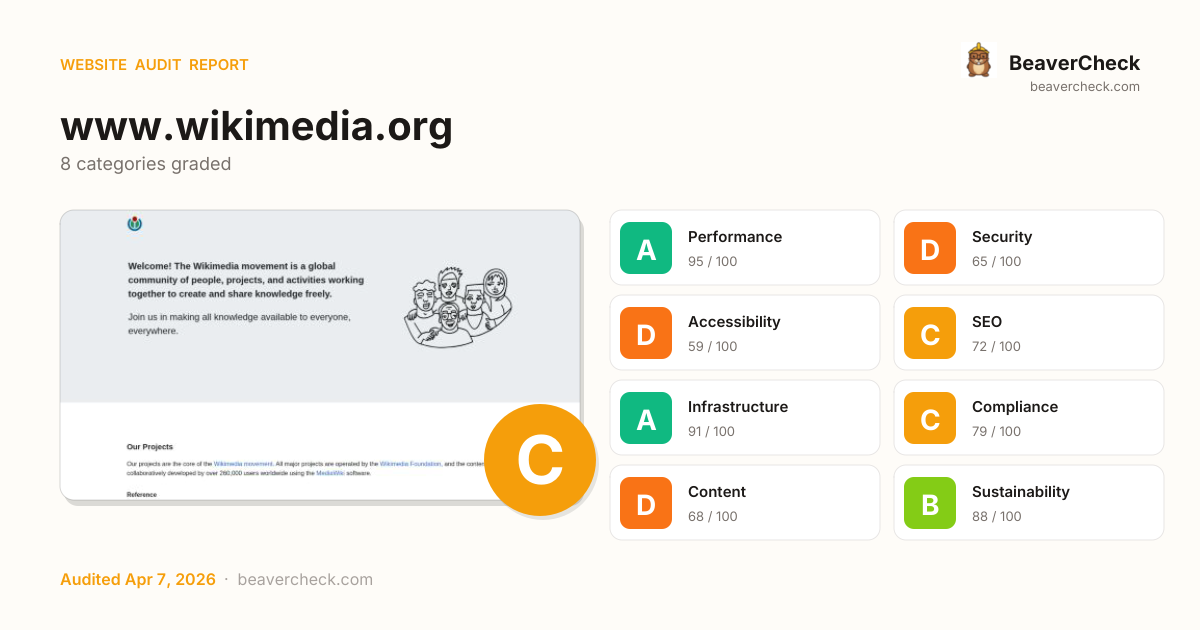
8Performance
All checks pass
Security
Content-Security-Policy header is missing
Accessibility
1 image(s) missing alt attribute
SEO
All checks pass
Infrastructure
All checks pass
Compliance
All checks pass
Content
All checks pass
Sustainability
All checks pass
How you compare
Where this site stands against peers running the same stack.
Top 10% of HSTS sites score 96+ on SEO; you're at 72 — closing this gap is the highest-leverage improvement.
Technology stack
HSTS, hosted on Apache Traffic Server
Stack Architecture
 Apache Traffic Server 9.2.11
All Detected Technologies (2)
Apache Traffic Server is an open-source caching and proxying server that serves as an HTTP/1.1 and HTTP/2 reverse proxy with caching capabilities, load balancing, request routing, SSL termination, and support for advanced HTTP features.
HTTP Strict Transport Security (HSTS) informs browsers that the site should only be accessed using HTTPS.
Observations (2)
No build tool detected
A framework (HSTS) was detected but no bundler was identified. The build tool may not be detectable from output patterns, or the site may use the framework's built-in bundler.
Minimal technology footprint
Only 2 technologies detected. This suggests a simple setup with minimal dependencies — excellent for performance and security.
Show your score
Drop this badge on your README, marketing site, or status page. It auto-updates every time the audit re-runs and links back to this report.

This badge auto-updates with your latest scan result.
[](https://beavercheck.com/sites/wikimedia.org)<a href="https://beavercheck.com/sites/wikimedia.org"><img src="https://beavercheck.com/badge?url=https%3A%2F%2Fwww.wikimedia.org" alt="BeaverCheck Score"></a>https://beavercheck.com/badge?url=https%3A%2F%2Fwww.wikimedia.orgExport & share
Download the audit, share with your team, or grab a fix plan ready to copy into your tracker.
Copies markdown to clipboard
Fix Plan
Three-week roadmap to ship the audit's findings, with one-click copy targets for your tracker.
Three-week fix plan
2 sprints · 8h total → projected B (85)
Sprint 1: Quick Wins
+3Highest ROI — low effort, high impact
- · No <main> landmark found
- · 14 image-only link(s) without alt text
Sprint 2: Core Fixes
+5Medium effort, high structural impact
- · 1 image(s) missing alt attribute
- · Content-Security-Policy header is missing
- · No Content-Security-Policy header found